


Color-coding turns a calendar from a wall of text into something you can read at a glance. The hard part isn’t the mechanics — it’s choosing colors that match how your brain actually processes information. This guide gives you a ready-to-use scheme, idea frameworks for sorting your events, and step-by-step instructions for Outlook, Google Calendar, and SharePoint.
Best Colors for Calendar Coding [Quick Reference]
Use this 6-color scheme for a clean, science-backed productivity calendar:
| Color | Use For | Why (Science) |
|---|---|---|
| Red | Urgent / deadlines / client-critical | Activates the sympathetic nervous system — attention spikes, heart rate rises. |
| Orange | Meetings, calls, collaboration blocks | Energizing without the alarm signal of red — good for high-engagement work. |
| Yellow | Creative work, brainstorming, learning | Stimulates without urgency — encourages exploration and idea generation. |
| Green | Routine tasks, recurring admin, exercise | Signals normalcy / safety — keeps the nervous system calm during repetitive work. |
| Blue | Deep focus, breaks, family events | Activates the parasympathetic system — lowers arousal, supports concentration. |
| Purple | Strategic planning, 1:1s, reviews | Visually distinct from the rest of the spectrum — flags reflective, lower-frequency work. |
Tip: For shared team calendars, use a classic traffic-light scheme (red → amber → green) so everyone reads it the same way at a glance.
Best Colors for Calendar Coding (with Scheme Examples)
There’s no universal “right” color scheme — but there are patterns that work for specific use cases. Below are three proven schemes you can copy directly.
Scheme 1 — Work Calendar (Productivity-Focused)
- Red — Deadlines and urgent client work
- Orange — Meetings (internal and external)
- Green — Recurring / routine tasks
- Blue — Deep focus blocks and lunch
- Purple — Strategic planning, reviews, 1:1s
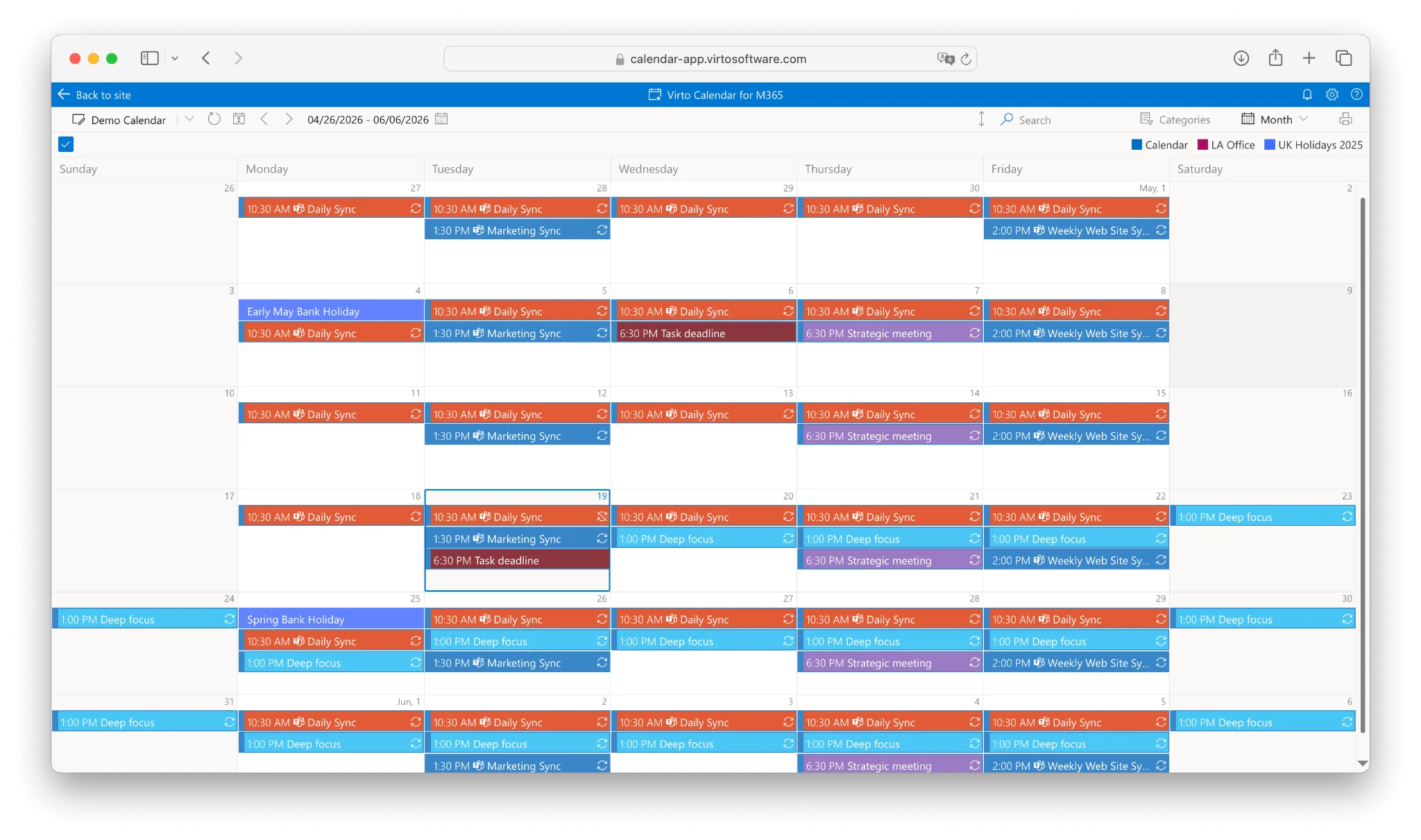
Week view of a work calendar using Scheme 1 (red, orange, green, blue, purple)
Scheme 2 — Personal & Family Calendar
- Red — Health appointments, doctor visits, prescription refills
- Yellow — Social events, dinners with friends
- Green — Exercise, fitness, outdoor time
- Blue — Family events, kids’ school activities
- Pink — Errands you don’t want to do (laundry, bills, admin)
Scheme 3 — Project Manager / Team Lead
Classic traffic-light plus two status colors:
- Red — Blocked / overdue
- Amber — At risk
- Green — On track
- Blue — In review
- Gray — Done / archived
Bonus tip: limit yourself to 5–7 colors max. More than that and the brain stops parsing the categories at a glance — which is the whole point of color coding.
Calendar Color Coding Ideas & Categories
Before assigning colors, decide what you’re categorizing. Here are six common frameworks to choose from:
Idea 1 — By Activity Type
Meetings / Focus work / Admin / Email / Breaks / Personal. The most common starting point. Works well if your day is a mix of different work modes.
Idea 2 — By Priority
Critical / Important / Routine / Optional / Buffer time. Good for high-pressure roles where prioritization is the bottleneck.
Idea 3 — By Project / Client
Project A / Project B / Client X / Internal / Cross-team. Best for consultants, agencies, and freelancers juggling several engagements at once.
Idea 4 — By Life Domain
Work / Health / Family / Learning / Hobbies / Errands. Best for personal calendars where work-life balance is the goal.
Idea 5 — By Energy Level
Deep focus / Creative / Social / Routine / Recovery. Best for matching tasks to your daily energy curve — schedule deep-focus blocks in the morning if that’s when you do your best work.
Idea 6 — By Outcome
Revenue-generating / Cost-saving / Growth / Maintenance / Learning. Best for entrepreneurs and executives measuring time ROI.
For deeper category lists by use case, see our calendar categories ideas guide.
How to Color-Code an Outlook Calendar
Outlook has the most flexible native color options of the three major calendar apps — 15 predefined shades plus a custom palette in the desktop and web versions. Coloring an Outlook calendar affects every event in that calendar; to color individual events differently, use Categories.
Quick steps — Outlook on the web
- Hover over the calendar name in the left-hand sidebar.
- Click the three horizontal dots that appear.
- Open the “Color” menu and pick from 15 shades, or open the custom palette to set your own.
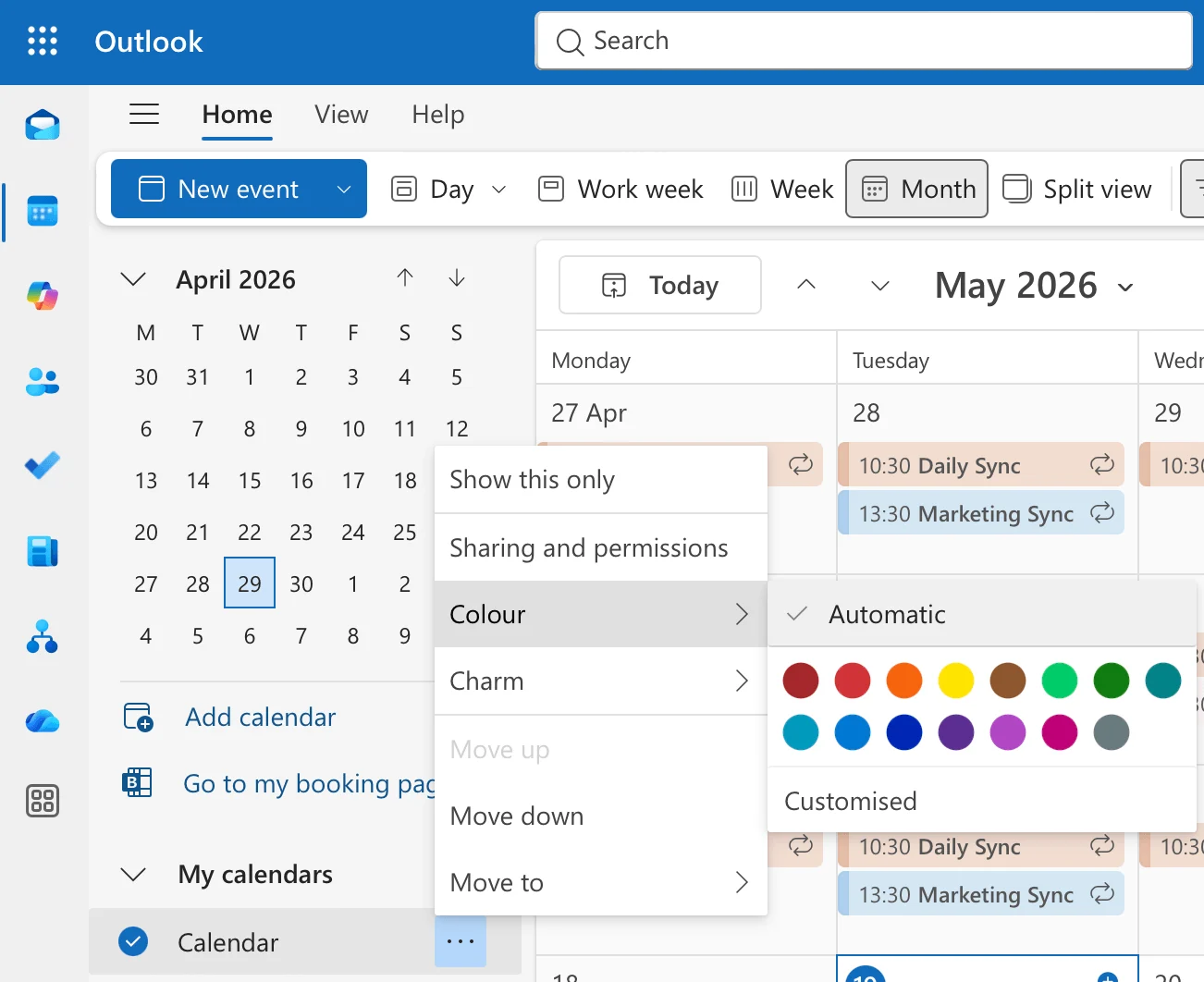
Outlook calendar color picker (web version, showing 15 predefined shades + custom palette)
Quick steps — Outlook mobile
- Open the Outlook calendar app on your phone.
- Tap the round profile icon in the top-left corner.
- Tap the gear icon next to the calendar you want to color-code.
- Pick from the 13 colors available in the mobile palette (no custom option in mobile).
Tip: Outlook color coding works for events within one calendar. To color-code across multiple calendars (Outlook + SharePoint + Google) in one view, you’ll need an overlay app — see Virto Calendar App below.
How to Color-Code a SharePoint Calendar
Native SharePoint calendar color coding is limited — by default, every event in a list displays in one color. To assign different colors to event categories, you need either custom JSON formatting or a calendar app that supports multi-source coloring.
Method 1 — Native SharePoint (JSON formatting)
- Open your SharePoint calendar list.
- Click the column header you want to color (e.g., “Category”).
- Choose Column settings → Format this column.
- Apply conditional formatting based on column values using JSON (see Microsoft’s documentation for the format reference). Learn more about it in our dedicated article »>
Limitations: requires JSON knowledge, and the rules don’t apply once you merge or overlay this calendar with calendars from other sources.
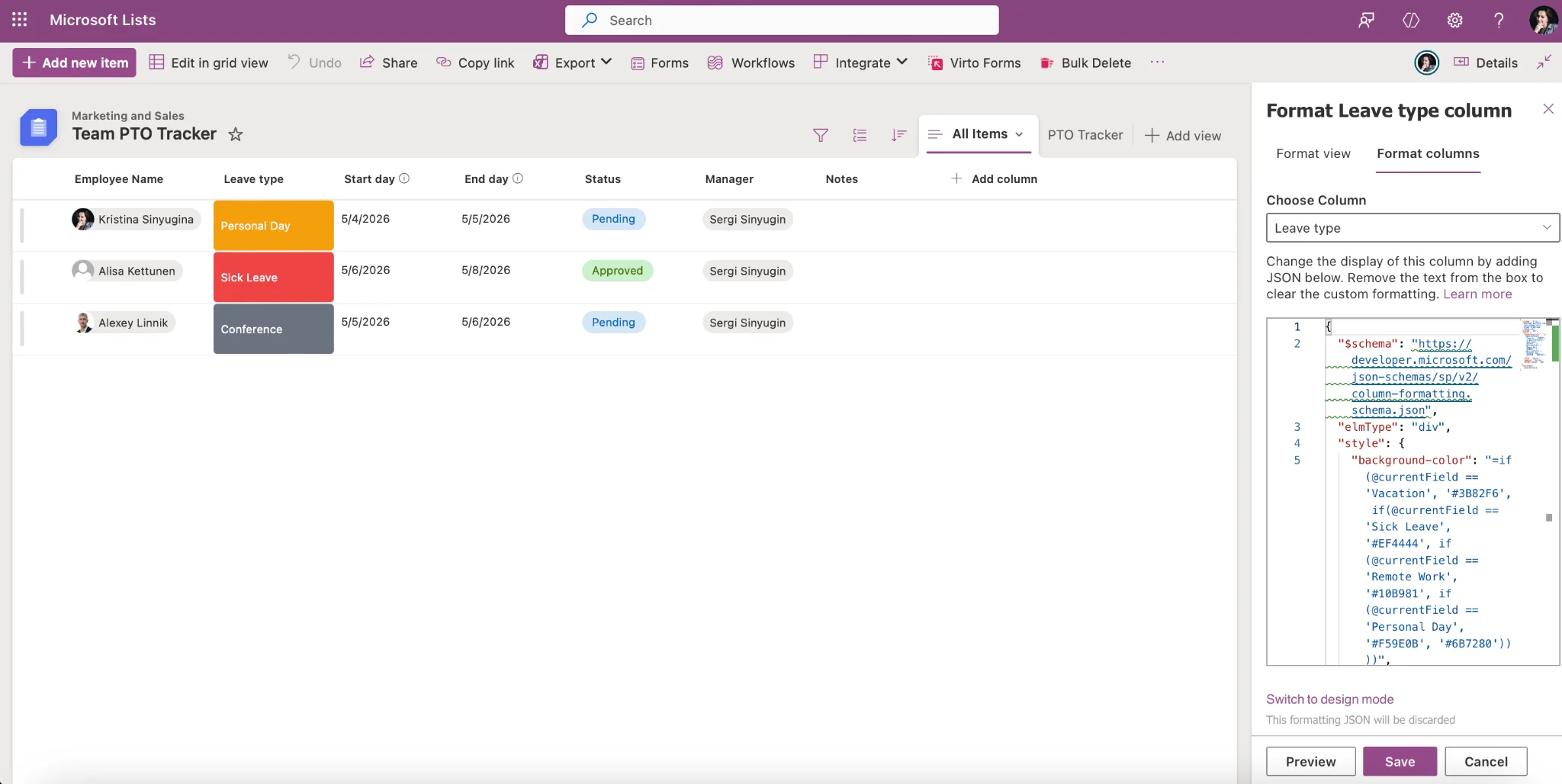
SharePoint column formatting JSON editor
Method 2 — Virto Calendar App (recommended)
- Install Virto Calendar App from Microsoft Marketplace (free tier for a month).
- Add calendars from multiple sources: SharePoint lists, Exchange, Microsoft Planner, iCal feeds.
- In calendar settings, assign a color per source AND a color per category within each source.
- Color coding renders automatically on SharePoint pages, in Microsoft Teams tabs, and in mobile views.
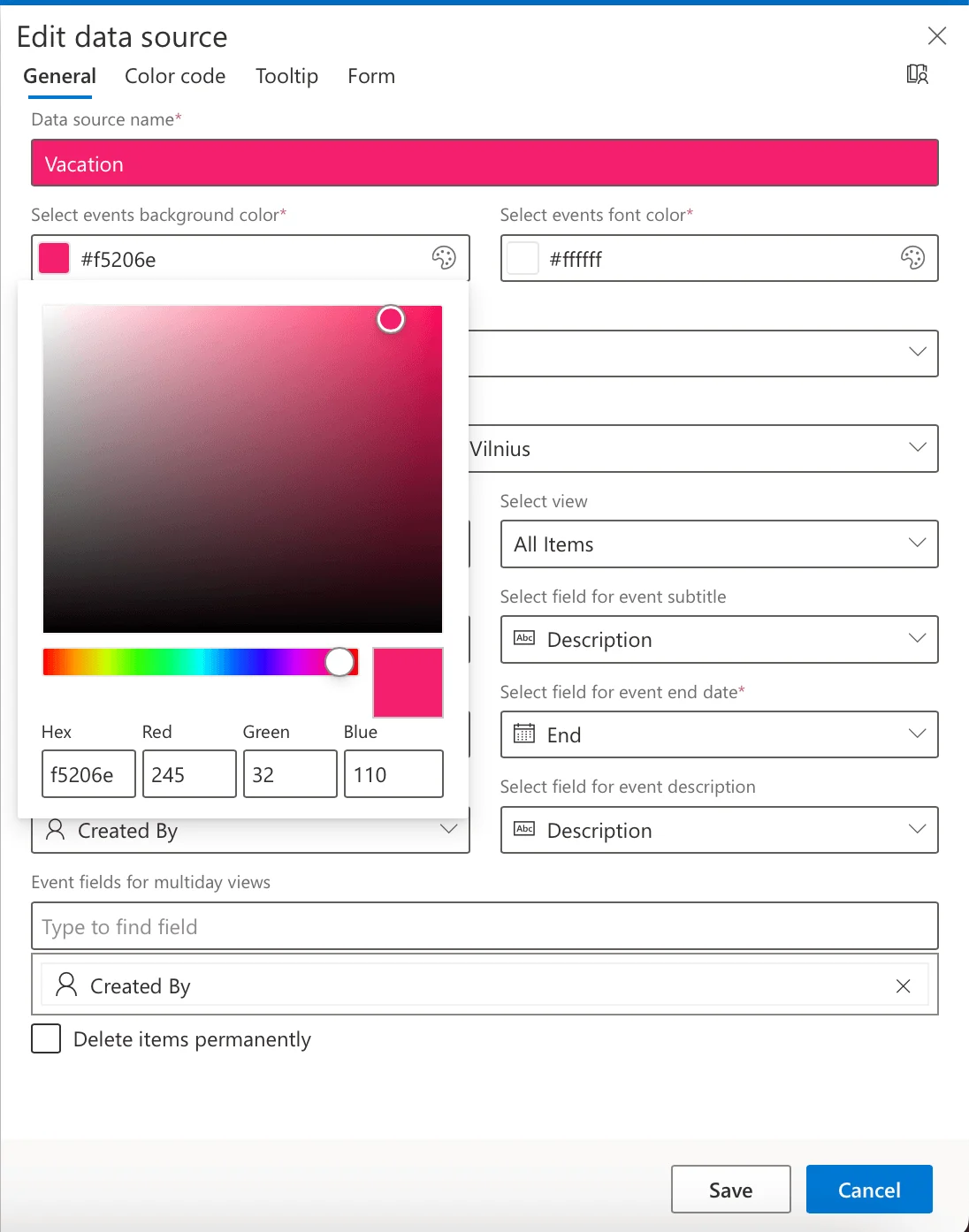
Virto Calendar App settings panel showing per-source and per-category color assignment
See Virto Calendar App for SharePoint color coding — free to try for one month.
How to Color-Code a Google Calendar
Google Calendar uses two layers of color: one color per calendar (e.g., “Work” vs “Personal”) and an override color per individual event.
Quick steps — Google Calendar in the browser
- Hover over the calendar name in the left-hand sidebar.
- Click the three vertical dots.
- Pick a preset color, or click the “+” to define a custom hex value.
- To recolor a single event, open it, click the colored circle, and pick a different shade.
Quick steps — Google Calendar mobile
- Open the Google Calendar app.
- Tap the three horizontal lines in the top-left corner → Settings.
- Tap the calendar you want to color-code.
- Tap the color name at the top of the screen and pick from the available options. (Custom colors are browser-only.)
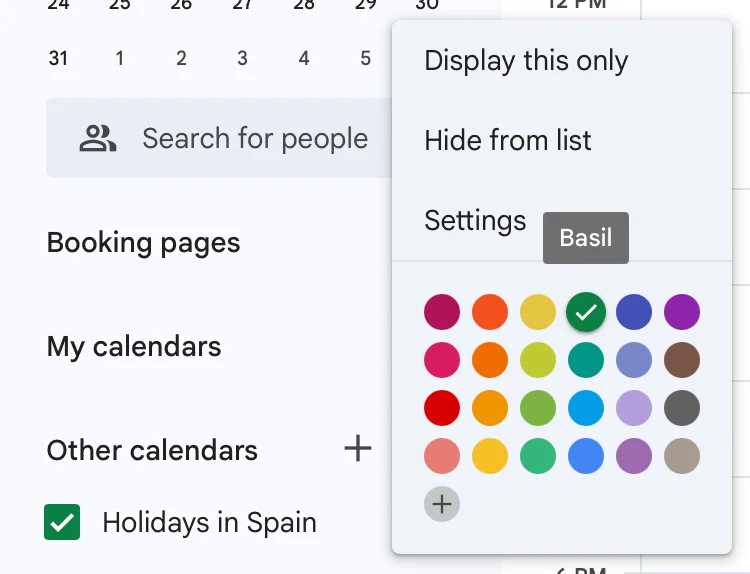
Google Calendar color picker showing default palette + custom color option
Note: For Microsoft 365 users who need to overlay Google Calendar with Outlook and SharePoint with unified color coding, see Virto Calendar App.
The Psychology of Color: Why Some Colors Boost Productivity
Some colors stimulate, others relax — and the reason is rooted in the autonomic nervous system, not personal taste. The red-to-yellow part of the spectrum activates the sympathetic nervous system: heart rate climbs, blood sugar rises, attention sharpens. Blue-to-green does the opposite, activating the parasympathetic system: pulse and breathing slow, the body shifts toward rest.
This response seems to have evolved alongside the day/night cycle. Warm colors mirror dawn, when the body is preparing for activity; cool colors mirror dusk, signaling rest. That’s the simplest explanation for why we reach for orange and red when we need a boost, and blue or green when we want to wind down.
The practical takeaway for calendars: match the color to the cognitive state the event demands. Reserve red for things that genuinely need a jolt of alertness — true deadlines, urgent client work. Use blue for deep focus and breaks, where you want your nervous system calm. And don’t fight your brain: a calendar packed with red is a calendar your brain will eventually tune out.
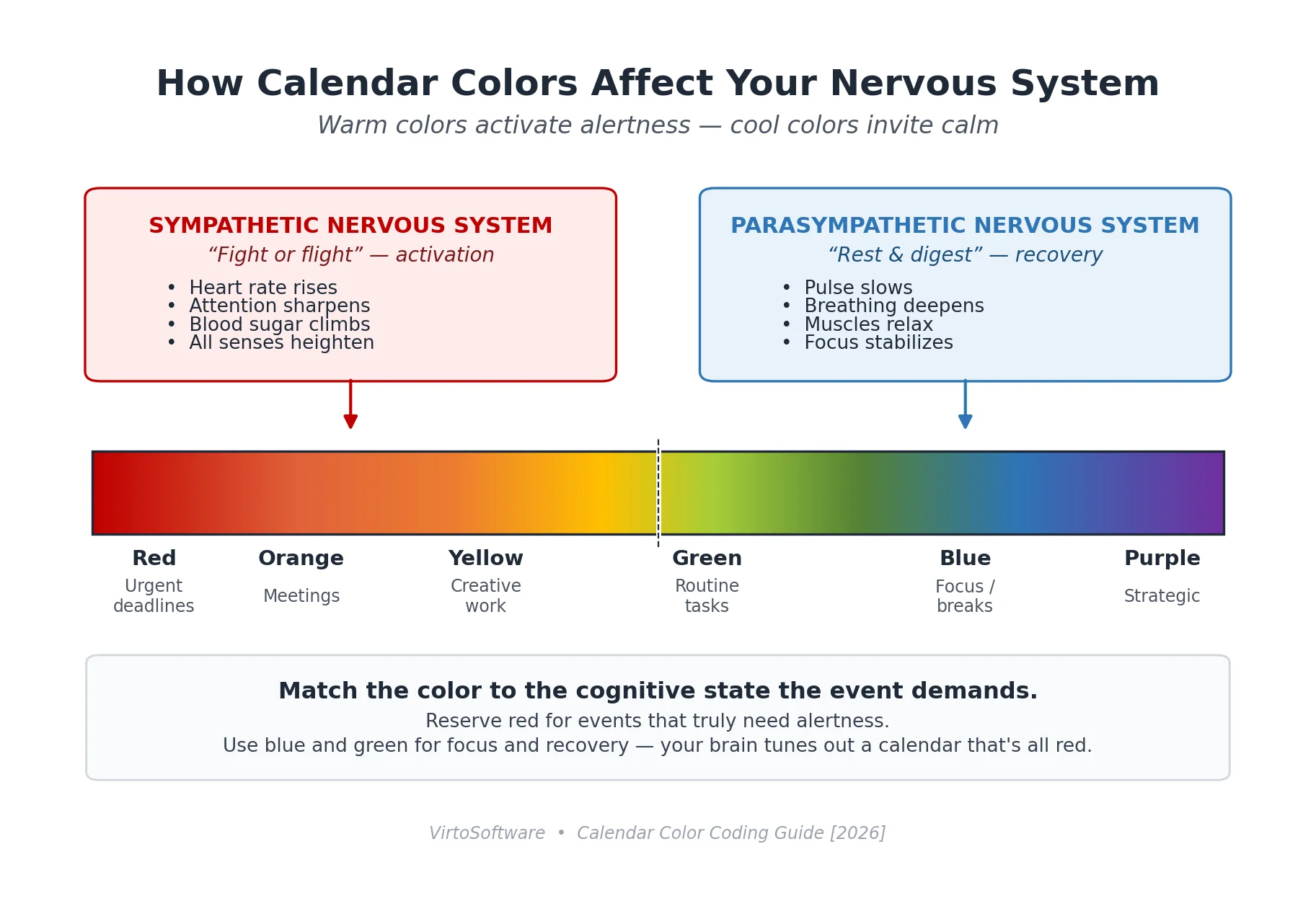
Diagram — warm vs cool color spectrum mapped to sympathetic / parasympathetic nervous-system responses
Pro Tips: Merging Calendars, Setting Limits, Setting Goals
Merge multiple calendars into one view
A common setup is one calendar for work and one for personal life, but a finer breakdown works better for many people. Try five color-coded calendars instead:
- A main work calendar — daily recurring tasks at your main workplace: meetings, routine work, lunch.
- A deadline calendar — every deadline you owe, including projects outside your main workplace.
- An appointment calendar — one-off events like a dentist visit or a parent-teacher meeting.
- A self-development calendar — training, webinars, reading, anything you keep meaning to do.
- A hobby calendar — the time you actually protect for things you enjoy.
Separate calendars are easier to manage than a single rainbow stream — and when you need the full picture, you can overlay them. Sharing also gets cleaner: you can share calendars 1 and 2 with colleagues without exposing your personal life. For overlaying calendars across Outlook, Google, and SharePoint in one view, see our merge multiple calendars guide.
Set a time for everything and stick to it
A calendar makes the daily ceiling visible. Once it’s full, it’s full. If a more urgent task comes in, decide honestly whether you can finish it today; if not, duplicate it and move the rest to tomorrow rather than pretending the day stretches further than it does. Careful planning protects you from burnout more than heroics do.
Don’t forget breaks. Apps like Virto Time Blocking add a one-click button to your Microsoft Teams calendar to insert breaks between meetings — useful when back-to-back meetings are quietly eating your focus.
Set realistic goals for your schedule
Every time you create a task, estimate how long it will take — even roughly. After you finish, update the estimate to the actual time. Over a few weeks you’ll calibrate your sense of how long things really take, which is the single biggest input to setting realistic goals.
Real Examples: How Teams Use Color Coding
Two short case studies — one Microsoft ecosystem, one hybrid — showing color-coding in practice.
MIRA Safety — color-coded restocks in Microsoft Outlook
Roman Zrazhevskiy, Founder and CEO of emergency preparedness retailer MIRA Safety, uses color-coded Outlook calendars to manage inventory restocks. “Handling inventory restocks efficiently is crucial, especially for high-demand safety apparel,” he says. His team assigns Outlook colors to restock stages: green for upcoming restocks, orange for urgent restocks, and red for delayed shipments.
“This lets our team assess inventory needs at a glance, ensuring we never run out of key safety products and can plan purchasing accordingly,” Zrazhevskiy says. The same visual system smooths internal communication: anyone glancing at the shared calendar knows immediately what’s on track and what’s not.
Stallion Express — Google Calendar + Trello for shipping operations
Jen Seran, Director of Business Operations at shipping provider Stallion Express, adopted color-coding when team complexity outgrew text-only calendars. “I researched productivity hacks, and color-coding was one of the easiest and most effective,” she says.
Stallion uses Google Calendar and Trello in tandem: Google for time, Trello for project status. Seran’s palette is intentionally high-contrast — green for client meetings, blue for team briefings, red for urgent deadlines, yellow for personal appointments, purple for strategic planning. “The clarity makes me more productive and less stressed. Both professionally and personally,” she says.
Color-Code Across Outlook, SharePoint & Google with Virto Calendar App
Native calendar apps color-code events within their own world — Outlook colors Outlook events, Google colors Google events, SharePoint shows everything in a single color unless you write JSON. None of them solve the real problem: a unified view of work that lives in different systems.
Virto Calendar App is built for that. It overlays calendars from SharePoint, Exchange, Microsoft Planner, Google Calendar (via iCal), and other sources into a single view in SharePoint or Microsoft Teams — with distinct colors per source AND per category within each source. Native Outlook can do one of those; Virto Calendar App does both.
- Free for one month on Microsoft Marketplace.
- Multi-source color coding — SharePoint + Exchange + Planner + Google iCal in one view.
- Per-category coloring — colors propagate to mini-calendar widgets on SharePoint pages and Teams tabs.
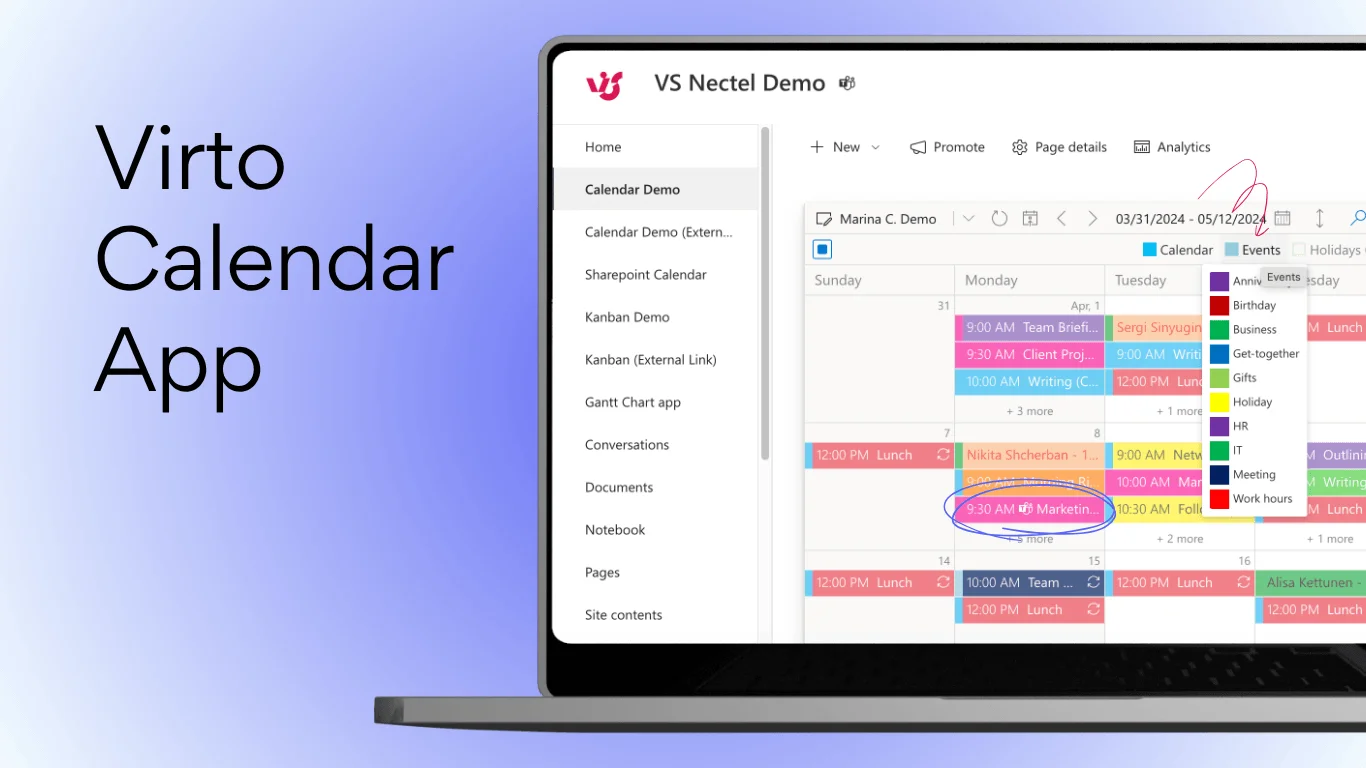
Virto Calendar App showing a unified color-coded view with SharePoint + Exchange + Planner + Google overlay
Frequently Asked Questions
What is the best color coding system for a calendar?
A 5-color scheme works best for most calendars: red for urgent / deadlines, orange for meetings, green for routine tasks, blue for focus time and breaks, and purple for strategic work. For team calendars, use a traffic-light system (red / amber / green) so everyone reads it the same way. Limit yourself to 5–7 colors max — more than that and the brain stops parsing the categories at a glance.
What colors should I use for calendar coding?
Stick to the science: warm colors (red, orange) for urgent or energizing tasks, cool colors (blue, green) for routine or restful blocks, and accent colors (purple, pink) for special categories. Red triggers attention, blue calms, green signals normalcy. Avoid too many pastels for shared team calendars — they’re harder to distinguish at a glance.
How do I color-code an Outlook calendar?
In Outlook on the web, hover over the calendar name in the left sidebar, click the three dots, and choose a shade from the Color menu (15 predefined + a custom palette). In Outlook mobile, tap your profile icon → gear icon next to the calendar → pick from 13 mobile-only shades. To color individual events differently, use Categories.
How do I color-code a Google Calendar?
In the browser, hover over the calendar name, click the three vertical dots, and pick a color (or define a custom hex). To recolor a single event, open it and click the colored circle. In the mobile app, go to ☰ → Settings → tap the calendar → tap the color name. Custom colors are browser-only.
How do I color-code an iOS calendar?
Open the Calendar app → tap Calendars at the bottom → tap the (i) next to the calendar you want to color → choose a preset or open the custom picker (grid, spectrum, or sliders). On macOS, click the calendar list icon, double-click the calendar, and pick a color directly.
How do I color-code calendars from multiple sources (Outlook + SharePoint + Google) in one view?
Native calendar apps don’t support multi-source color coding — Outlook colors events only within its own calendars, Google only within Google. To overlay calendars from different sources (SharePoint lists, Exchange, Microsoft Planner, Google iCal) with unified color coding, you need a third-party calendar overlay app. Virto Calendar App is the most common solution for Microsoft 365 users — free monthly trial.
Summary
Color-coding works because it converts a calendar from text the brain has to read into a pattern the brain can scan. Pick 5–7 colors that match the cognitive state of each event type, stay consistent, and use the schemes above as a starting point. For Microsoft 365 users who need unified color coding across Outlook, SharePoint, Google, and Planner in one view, start with the free tier of Virto Calendar App.