


Imagine having a simple, powerful way to whip up surveys, quizzes, or feedback forms right inside your Microsoft 365 suite—no coding required. Microsoft Forms is that built-in tool, designed precisely for creating surveys, quizzes, and feedback forms with remarkable ease. Whether you’re gauging team morale, polling event attendees, or gathering student insights, it’s your go-to for quick, professional-grade data collection.
Perfect for both personal projects—like planning a family vacation poll—and professional needs, from surveying employees on new policies to collecting glowing (or constructive) customer feedback post-purchase. What makes it shine? Its seamless accessibility across devices and apps means you can launch a Microsoft Forms survey from your desk, phone, or even mid-meeting in Teams.
In this article, we’ll dive into the nuts and bolts: how to create a survey in Microsoft Forms step by step, unpack how the tool works with its real-time magic, spotlight any limitations to keep expectations realistic, and explore the sweet-spot scenarios where it truly excels—like streamlining internal comms or sparking actionable insights. Stick around, and you’ll be ready to harness this Microsoft survey tool like a pro.
What is Microsoft Forms and Why Use It
Ever wondered how teams gather feedback without the hassle of clunky spreadsheets or pricey software? Microsoft Forms is a cloud-based tool from Microsoft, baked right into Microsoft 365, letting you quickly create surveys, feedback forms, questionnaires, and quizzes—no technical skills required. It’s like having a digital Swiss Army knife for data collection, perfect for anyone from HR pros to teachers wanting polished results fast.
Let’s break down the key features that make it a standout Microsoft survey tool.
Versatile Form Creation
Fire up standard surveys to collect opinions and feedback, craft questionnaires or registration forms for events, or build quizzes with automatic grading for employee training—think testing knowledge on new company policies. With recent 2025 updates, you get smarter question types like file uploads, branching logic, and even AI-suggested questions to make forms dynamic and engaging.
Real-Time Response Magic
Responses roll in automatically, popping up as interactive graphs, tables, and charts right in the dashboard—ideal for live polls during meetings or instant feedback after workshops. Watch trends form in real time, like seeing 80% of your team vote “yes” on a new initiative, helping you pivot on the spot.
Effortless Data Export
One-click export to Excel unlocks deeper analysis, custom reports, or integration with Power BI for those boardroom-ready visuals—no more manual copy-pasting.
Access Anywhere
Jump in via any browser (no downloads needed), your phone for on-the-go checks, as a tab in Microsoft Teams for team collaboration, or embed directly in Outlook emails for seamless sharing.
Does Microsoft have a survey tool?
Absolutely—Microsoft Forms comes included in most Microsoft 365 subscriptions, even free education plans, making it available to a wide range of users at no additional cost for businesses and schools alike.
Is Microsoft Forms survey free?
Yes, for standard Microsoft 365 users, with premium perks available in business or education tiers—perfect for getting started without any upfront investment.
Does Microsoft have a survey tool like Google Forms?
You bet—Microsoft Forms is a direct analog of Google Forms, a cloud-based tool for creating and distributing questionnaires and surveys, complete with the ability to embed them in emails, web pages, and Microsoft Teams for that extra collaborative edge.
How to Create a Survey in Microsoft Forms
Ready to roll up your sleeves and build your first Microsoft Forms survey? It’s surprisingly straightforward, even if you’re not tech-savvy. This section walks you through the process step by step, from blank canvas to live data collector.
Creating a New Survey
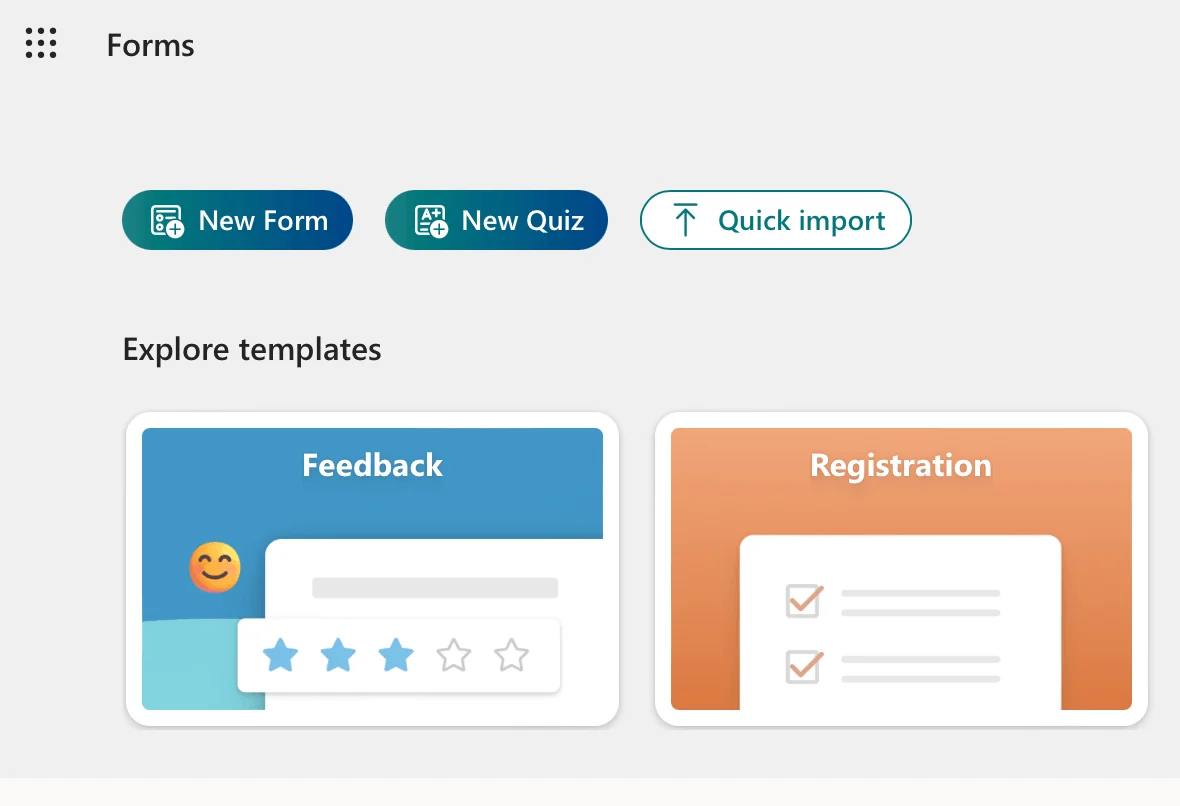
Kick things off by heading to forms.office.com and signing in with your Microsoft 365 account—it’s the same login as your email or Teams. On the dashboard, hit “New Form” for a classic survey or “New Quiz” if you’re testing knowledge with auto-scoring.
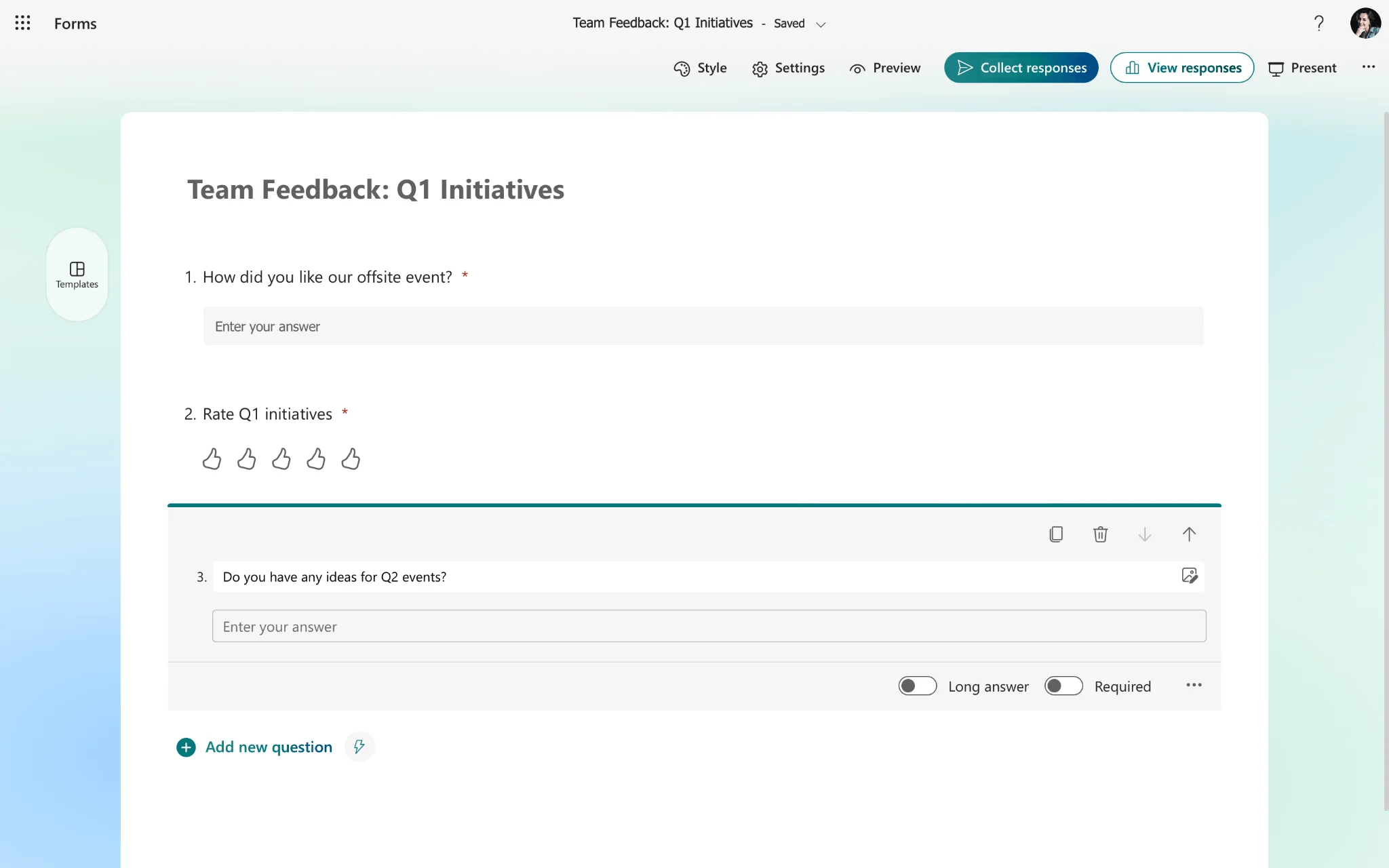
Give it a catchy title and a quick description to set expectations—like “Team Feedback: Q1 Initiatives” so respondents know what’s up. Then, click “Add new” to build questions. Microsoft Forms offers versatile types: single choice for yes/no polls, multiple answers for checkboxes, short or long text for open-ended thoughts, rating scales (stars or 1-10), date pickers, ranking for priorities, and simple true/false for quizzes. Spice it up with images, videos, or even file uploads to keep engagement high—perfect for product feedback surveys.
👉 Create a form with Microsoft Forms (official guide)
Configuring Survey Parameters in Microsoft Forms
With questions in place, dive into the “…” menu for branch logic.
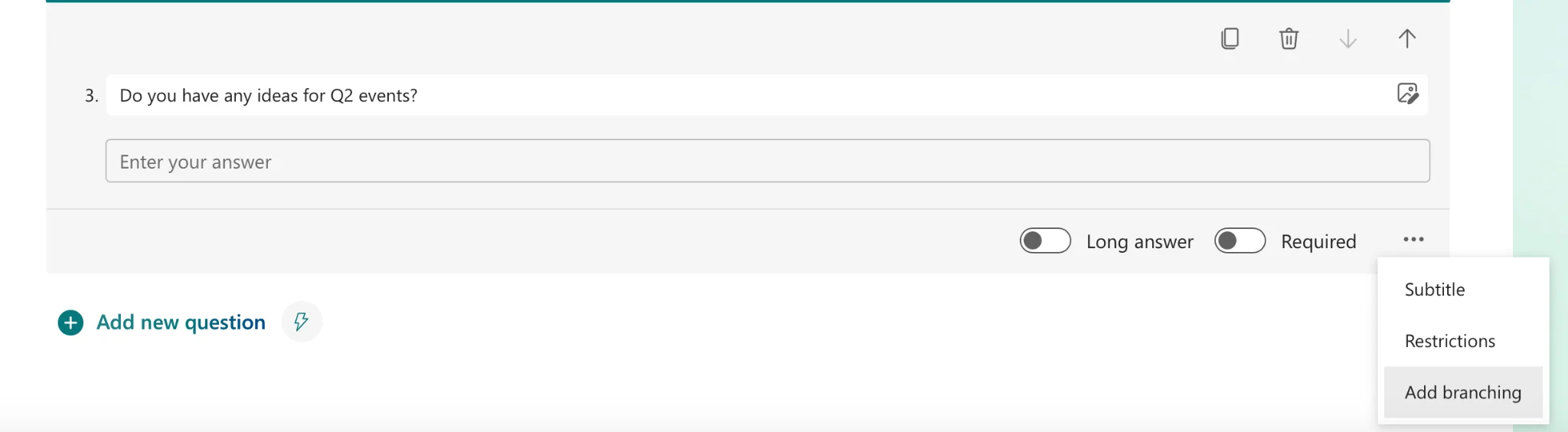
Branching in Microsoft Forms is a logic feature that shows questions dynamically based on previous answers. For example, “Yes” to “Use Teams?” skips to Teams-specific questions, while “No” jumps ahead or ends the form.
Head to settings (top-right gear icon) to tweak behavior. Decide on anonymity—toggle “Record name” off for private responses, or keep it on for accountability in employee surveys.
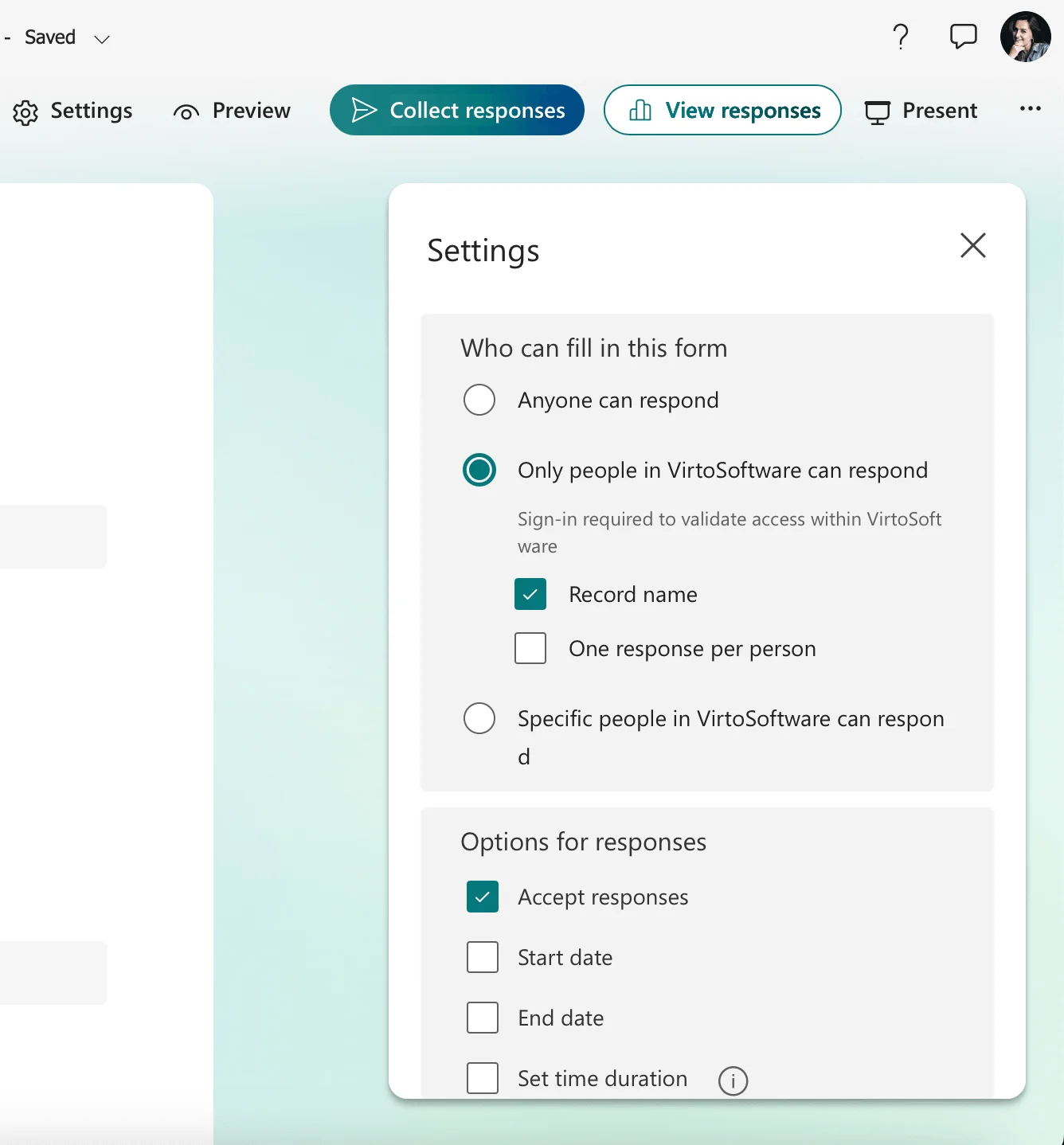
Set who can respond: restrict to your organization for internal polls, or “Anyone with the link” for broader reach. Other smart options include allowing one response per person, showing result summaries post-submission, or revealing correct answers in quizzes. Cap it off with a friendly thank-you message, like “Thanks for shaping our future!"—it boosts completion rates.
How do you create a survey in Microsoft Forms?
Just follow these steps: sign in at forms.office.com, pick New Form, add questions from the intuitive toolbar, configure settings for anonymity and access, then share—boom, you’re live in minutes.
How does Microsoft Forms work?
It shines in its simplicity: build visually, share instantly, and watch responses flow in real-time with built-in visuals, all powered by Microsoft 365’s secure cloud—no installs needed.
Sending and Publishing Microsoft Forms Survey
Sharing is easy—click “Collect responses” for a tailored link to copy-paste anywhere. Send directly via email from Forms, or generate a QR code for in-person events (scan and respond on the spot).
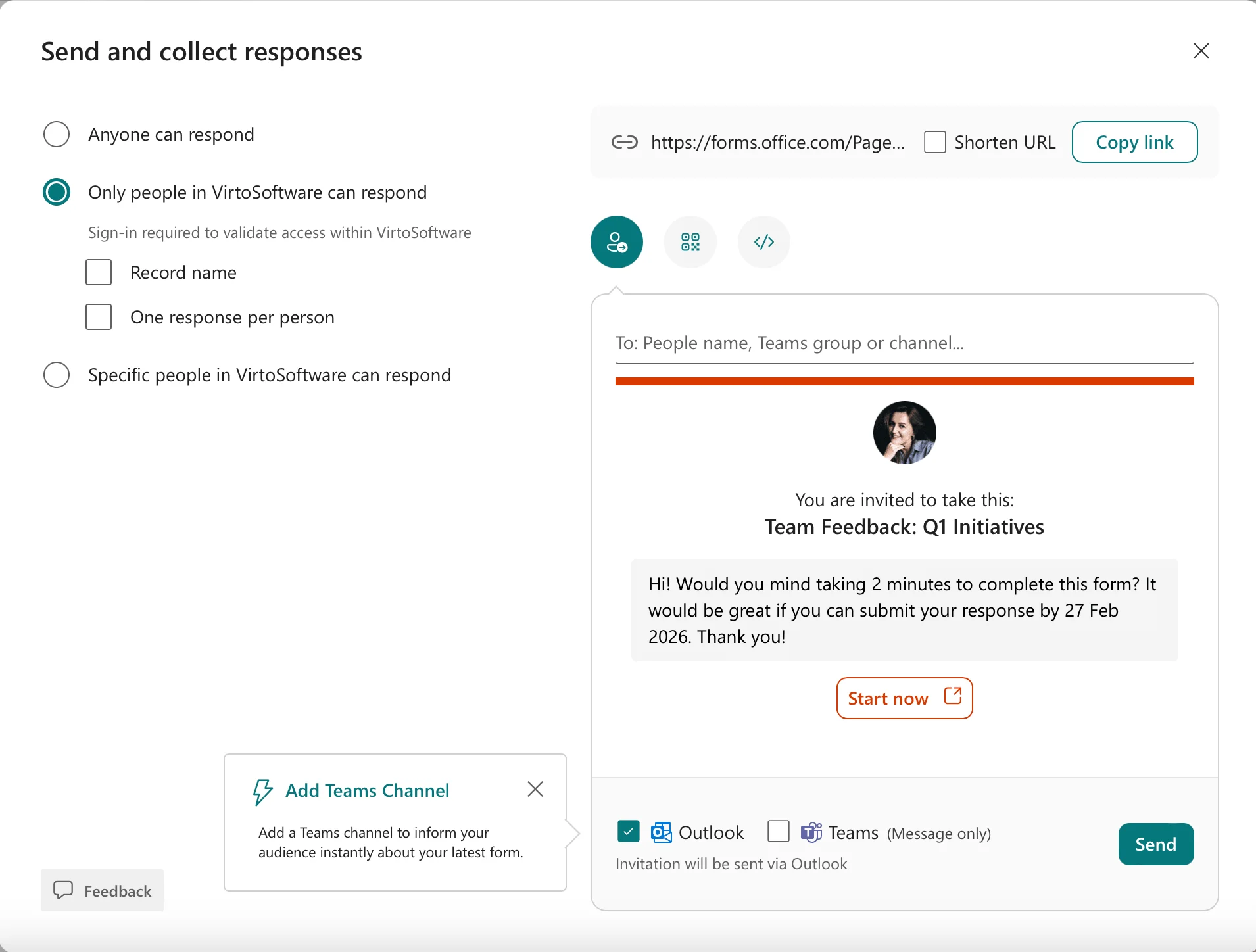
Embed the HTML code on your site or blog for seamless integration, or drop it into Microsoft Teams as a channel poll or chat tab—ideal for quick colleague input without leaving the app. Pro tip: Track opens and responses live to follow up fast.
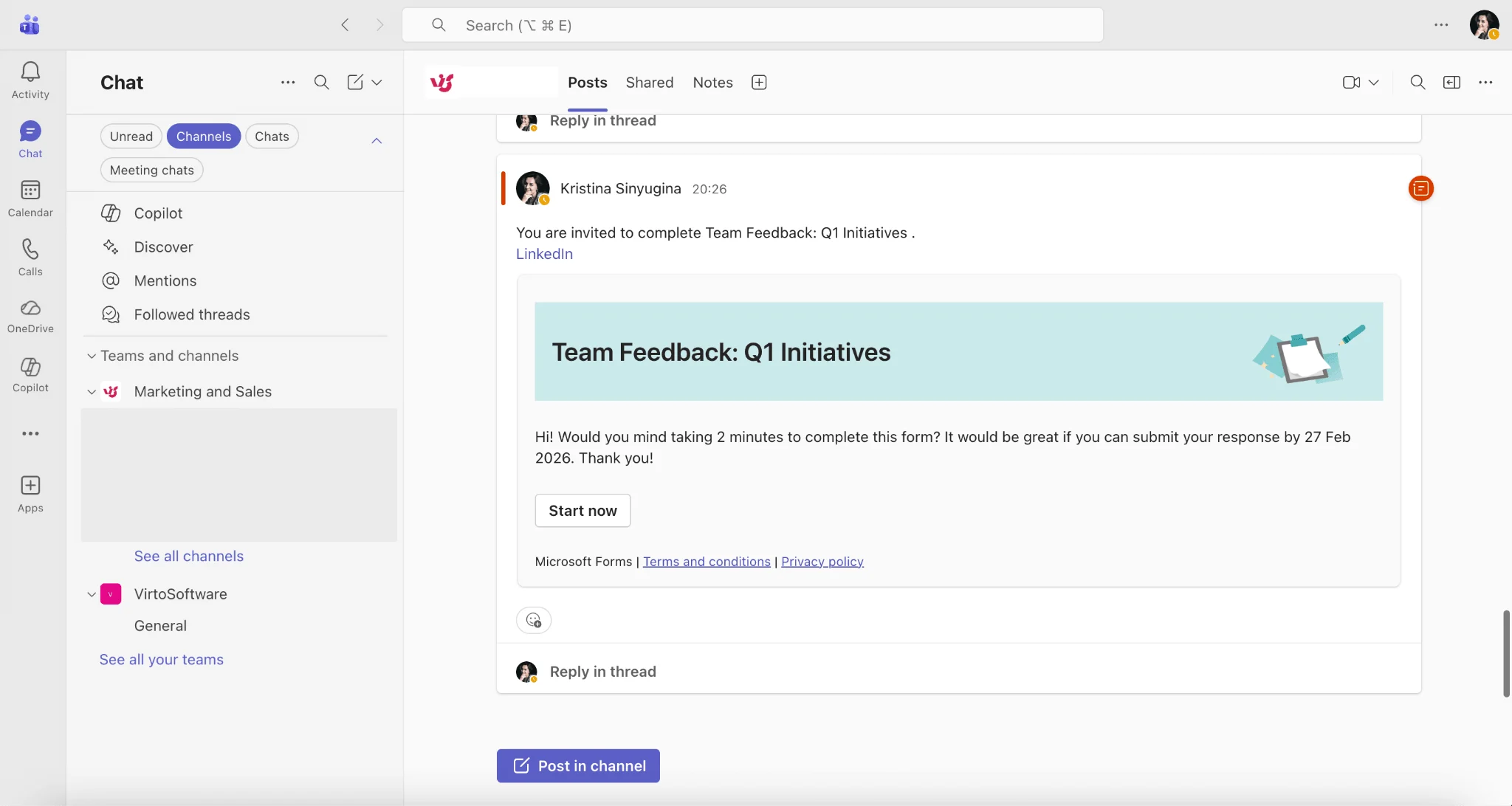
👉 Read more: How to create a poll in Teams »>
Analysis and Results Display Options in Microsoft Forms Survey
Once responses start trickling in, Microsoft Forms turns into your personal data detective, offering slick tools to analyze everything right away—no waiting around for spreadsheets. Whether you’re spotting trends in customer feedback or gauging training effectiveness, the built-in visuals make insights pop without extra software.
Viewing and Analyzing Responses
Head to the “View Responses” tab, and you’ll see a clean table summarizing every question: counts, percentages, and highlights for each option—like 65% picking “Satisfied” on your service rating.
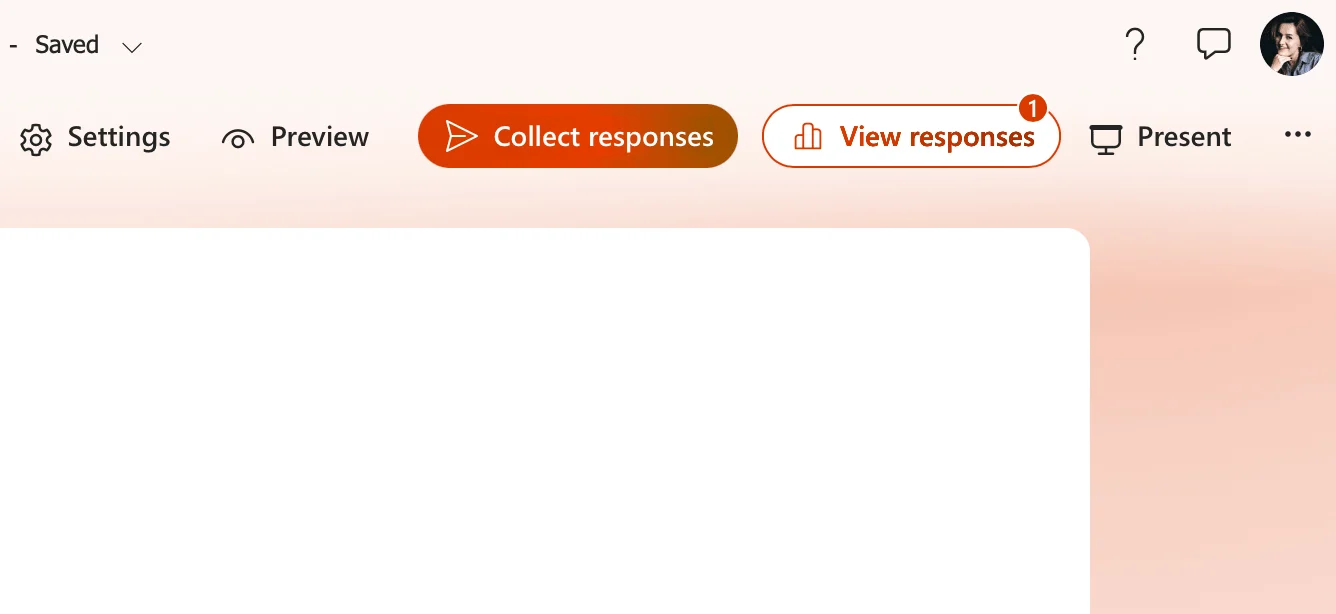
Charts kick in automatically—pie for choices, bars for rankings—giving you that at-a-glance trend analysis, perfect for quick team updates.
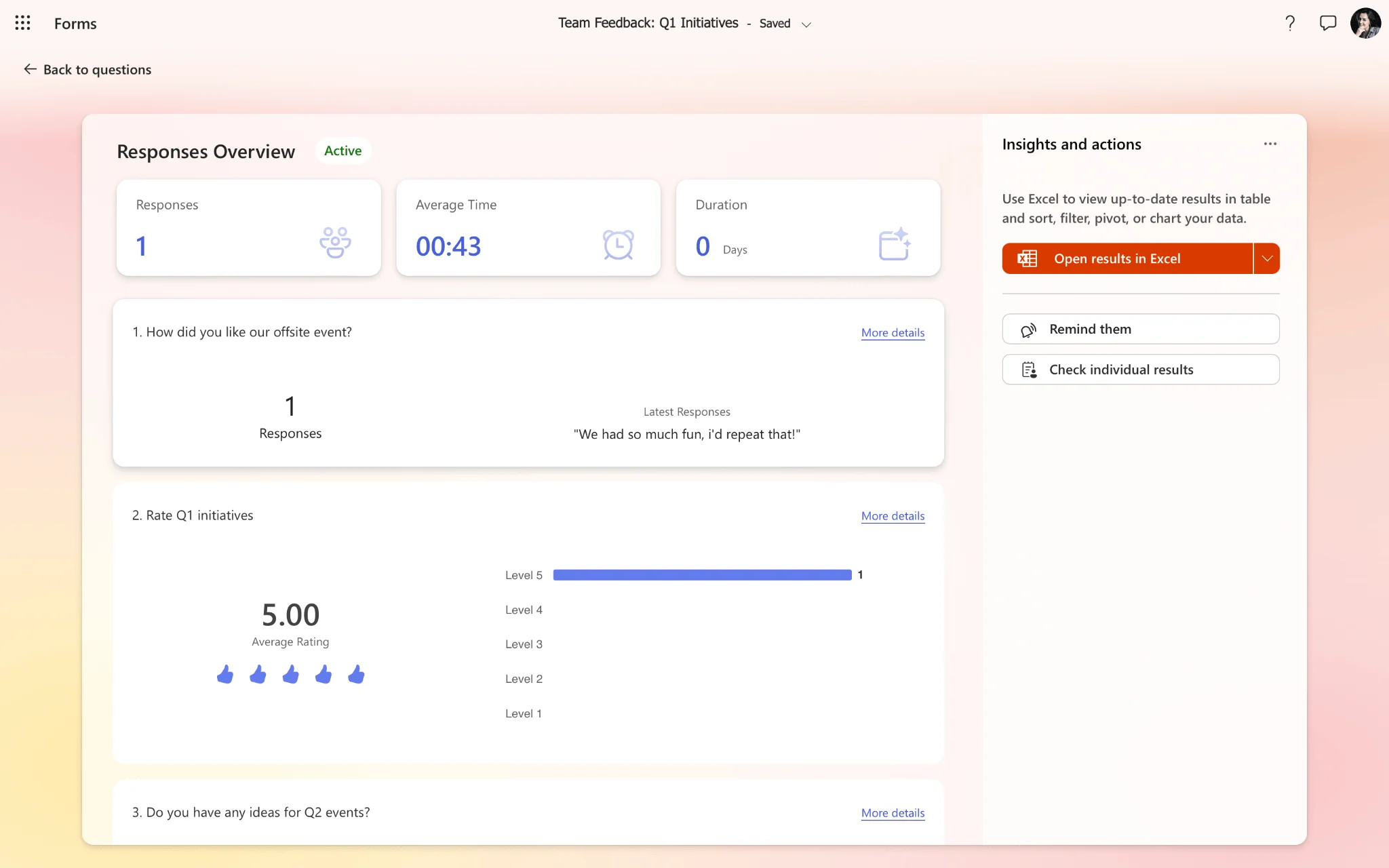
For deeper dives, hit “Open in Excel” to download a full table: rows for each respondent, columns for questions, ready for pivots, filters, or Power BI magic. Track response timing too, with timestamps showing completion dates—handy for deadline-driven surveys or multi-wave campaigns.
Data Display Options
By default, it’s all aggregated: summaries and visuals first, but flip to “Individual” for a row-by-row breakdown if you need specifics. Anonymous mode? You’ll get pure response content, no names attached—ideal for honest feedback.
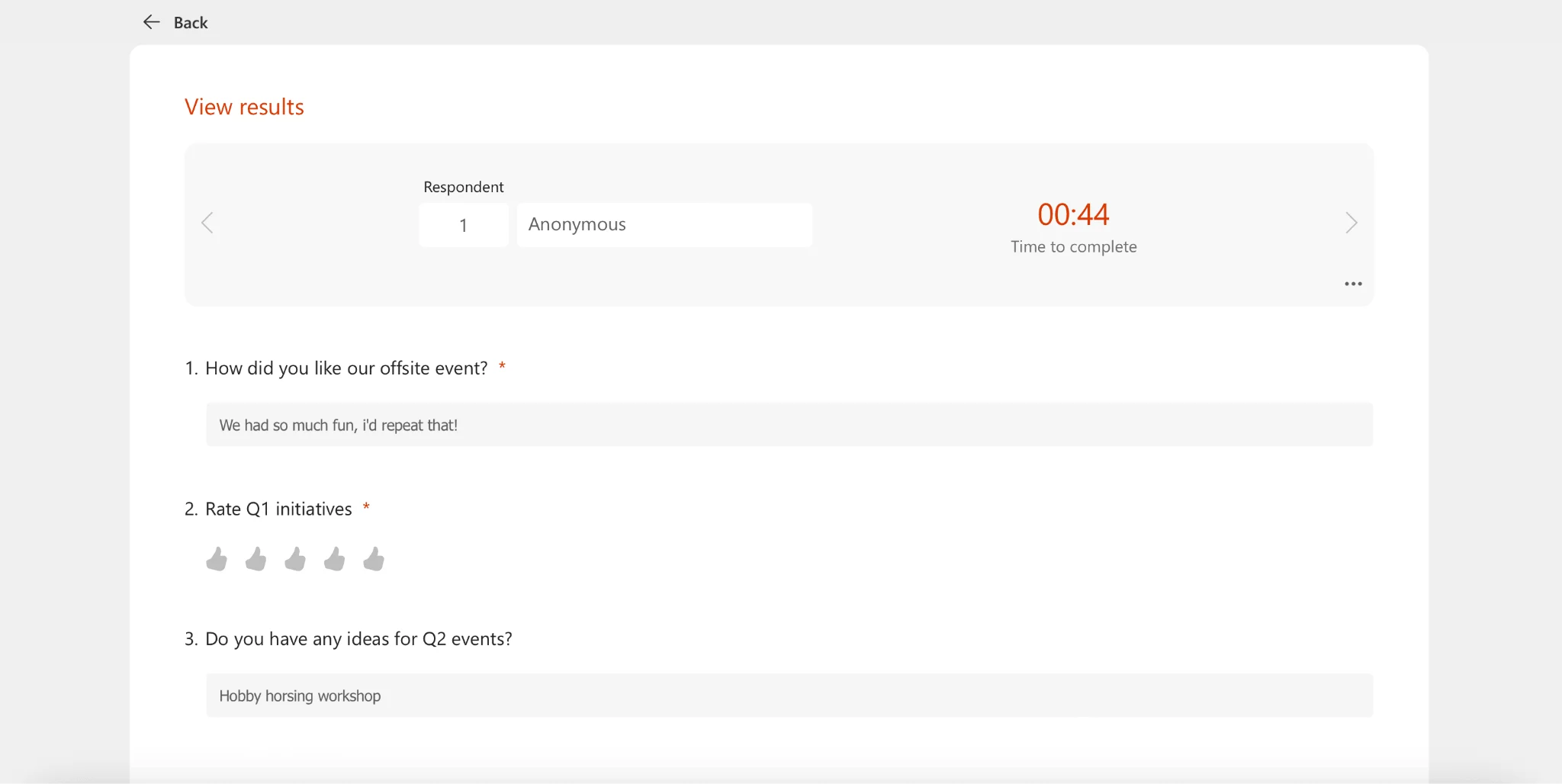
Enable name/email recording in settings, and those details appear in the table for follow-ups, like emailing top responders.
Are Microsoft surveys truly anonymous?
Yes, when you toggle off “Record name” in settings—responses stay unattributed, though enterprise admins might see IPs for security; no personal links unless you opt in.
Microsoft Forms Limitations and Possible Solutions
No tool is perfect, and Microsoft Forms is no exception—especially if you’re planning massive surveys or need ninja-level customization. But don’t sweat it; knowing these limits upfront (and their workarounds) keeps you from nasty surprises. Here’s the rundown on key constraints, straight from real-world use.
Key Limitations
- Maximum 4,000 responses per survey: Great for most teams, but educational institutions or large orgs running company-wide polls might hit this wall fast—think alumni surveys or annual employee feedback blasts.
- Question number limit: No hard official cap, but push past 100-110 questions and things get glitchy: slower loading, mobile display woes, or unresponsive fields that frustrate respondents.
- Limit to 1,000 forms per user: Microsoft 365 users top out at 1,000 active forms—archive or delete old ones (and migrate data) to free up space when you’re juggling multiple projects.
- Basic branching logic only: Skip to a question based on answers? Sure. But complex rules, user segmentation, or multi-step funnels? Nope—not without hacks, unlike pro platforms like Typeform.
What are the limitations of Microsoft Forms for surveys?
In short: response caps at 4,000, practical question limits around 100, 1,000-form user ceiling, and simple logic that skips advanced flows—fine for quick polls, but scale up and you’ll crave more power.
Smart Workarounds and Alternatives
Hit a snag? Plug it with Microsoft magic—no need to jump ship.
- Microsoft Power Automate: Supercharge with flows—add smart conditional logic, auto-notifications (e.g., “Low score? Alert the manager!”), or route responses to departments. Turns basic surveys into workflow wizards.
- Excel Integration: Export once, then let Excel Online handle dynamic charts, pivots, and filters for big-data deep dives—automate reports that update as responses roll in.
- SharePoint Integration: Pipe results straight to libraries for secure storage, tying into HR workflows or company dashboards—perfect for compliance-heavy environments.
These tweaks keep Microsoft Forms humming for 90% of needs while scaling for the rest. Pro tip: Start simple, then layer on integrations as your surveys grow.
Another Alternative – Virto Polls for Microsoft 365
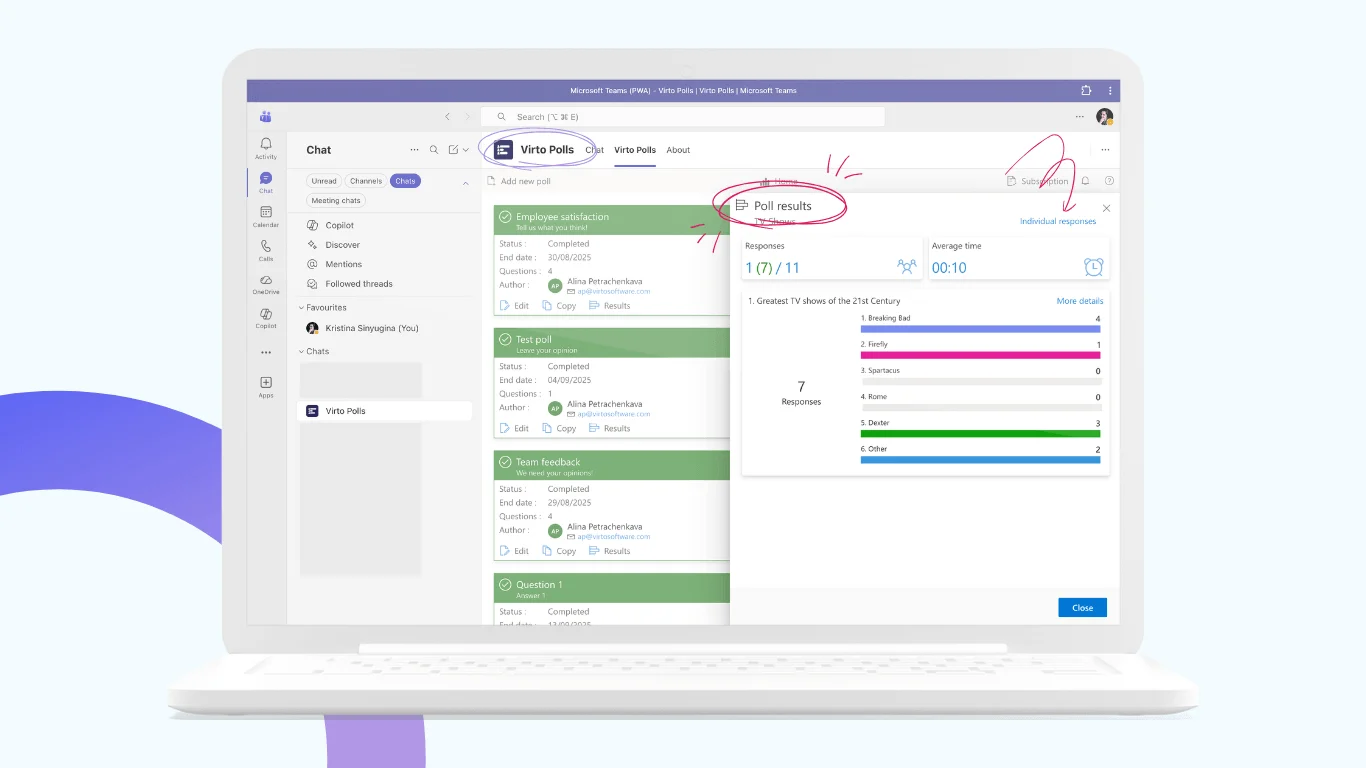
Need more firepower within the Microsoft ecosystem? Enter Virto Polls, an advanced surveying app tailored for Teams, Outlook, and Microsoft 365, emphasizing real-time, interactive polling without ever leaving your flow.
Key features include quick-setup surveys (single/multiple choice, ratings, open text), chatbots for guided responses, live visualizations, deep Teams integration, ready templates, robust conditional logic, and custom branding. Start free with 5 surveys, then upgrade for unlimited power.
Over Forms, it shines with richer question types like rankings and knowledge tests, polls across meeting phases (pre/during/post), advanced export/analytics, and scalability for complex SharePoint/Teams setups—busting through Forms’ customization and volume hurdles effortlessly. Ideal if you’re all-in on M365 but crave pro-level polling.
Using Microsoft Forms in Teams and Outlook
Microsoft Forms doesn’t play solo—it’s a team player, weaving seamlessly into Microsoft 365 favorites like Teams and Outlook to supercharge feedback without app-switching hassles. Whether you’re rallying a remote crew or emailing clients, these integrations make surveys feel like a natural part of your workflow.
Embedding Forms in Microsoft Teams
Drop a “Forms” tab right into any Teams channel via the “+” icon—bam, your survey’s pinned front-and-center for instant access. Perfect for ongoing team polls on project ideas, retrospectives, or “What’s our next win?” brainstorming sessions.
Time it right across meetings: Pre-meeting surveys gather agenda wishes or RSVPs; live ones spark real-time votes (“Option A or B?”); post-meeting wraps with “How’d we do?” ratings. Enable the Forms bot for chat pings on new responses—stay looped in without constant checking, turning data into action fast.
Integrating with Outlook
Craft an email in Outlook? Insert your form directly (via the “…” menu > Forms), letting recipients fill it out inline—no links, no friction, higher completion magic.
For events, attach surveys to calendar invites: “Top topics?” or “In-person or Zoom?” upfront intel that shapes killer agendas. It’s all about that effortless loop from send to insights.
These hooks make Microsoft Forms a daily driver, especially in hybrid work worlds where Teams and Outlook rule the roost. Pro move: Combine with Power Automate for auto-emails on hot responses!
Microsoft Forms Survey Use Cases
Microsoft Forms isn’t just a tool—it’s a versatility champ, shining brightest in real-world scenarios from office vibes to customer chats. Let’s explore standout use cases where it saves time, sparks insights, and fits like a glove in your Microsoft 365 routine.
Employee Mood and Engagement Surveys
Regular employee surveys help HR and management track the emotional state of the team, satisfaction with work conditions, team relationships, and perceptions of change in the company. The anonymity of surveys makes responses more honest and informative for management decisions.
Collecting Feedback After Events
After webinars, trainings, meetups, and internal meetings, you can use Microsoft Forms to quickly collect feedback from participants. The form can include both rating scales (e.g., 1 to 5) and open-ended questions.
Registering Attendees for Internal Activities
Microsoft Forms is an excellent tool for registering employees for internal events, such as corporate holidays, sports activities, or educational courses and training. The form allows you to specify the date, time, and format of the event, and add checkboxes for selection, such as online/offline participation, lunch reservations, etc. All responses are automatically collected and can be exported to Excel for further processing.
Customer and Partner Surveys
Microsoft Forms can also be used for external surveys, sending questionnaires to customers and partners. This can be useful for collecting feedback on service quality, understanding the needs of the target audience, and conducting NPS (Net Promoter Score) surveys.
Conducting Internal Tests and Certifications
The “New Quiz” feature in Microsoft Forms allows you to create forms with automatic response checking—ideal for mini quizzes at the end of training, testing new employees, or regular knowledge checks in sales, support, or IT departments.
Best Practices for Creating Microsoft Forms Survey
Crafting a high-response, insightful Microsoft Forms survey is as much art as science. Follow these best practices to boost completion rates and get cleaner data every time.
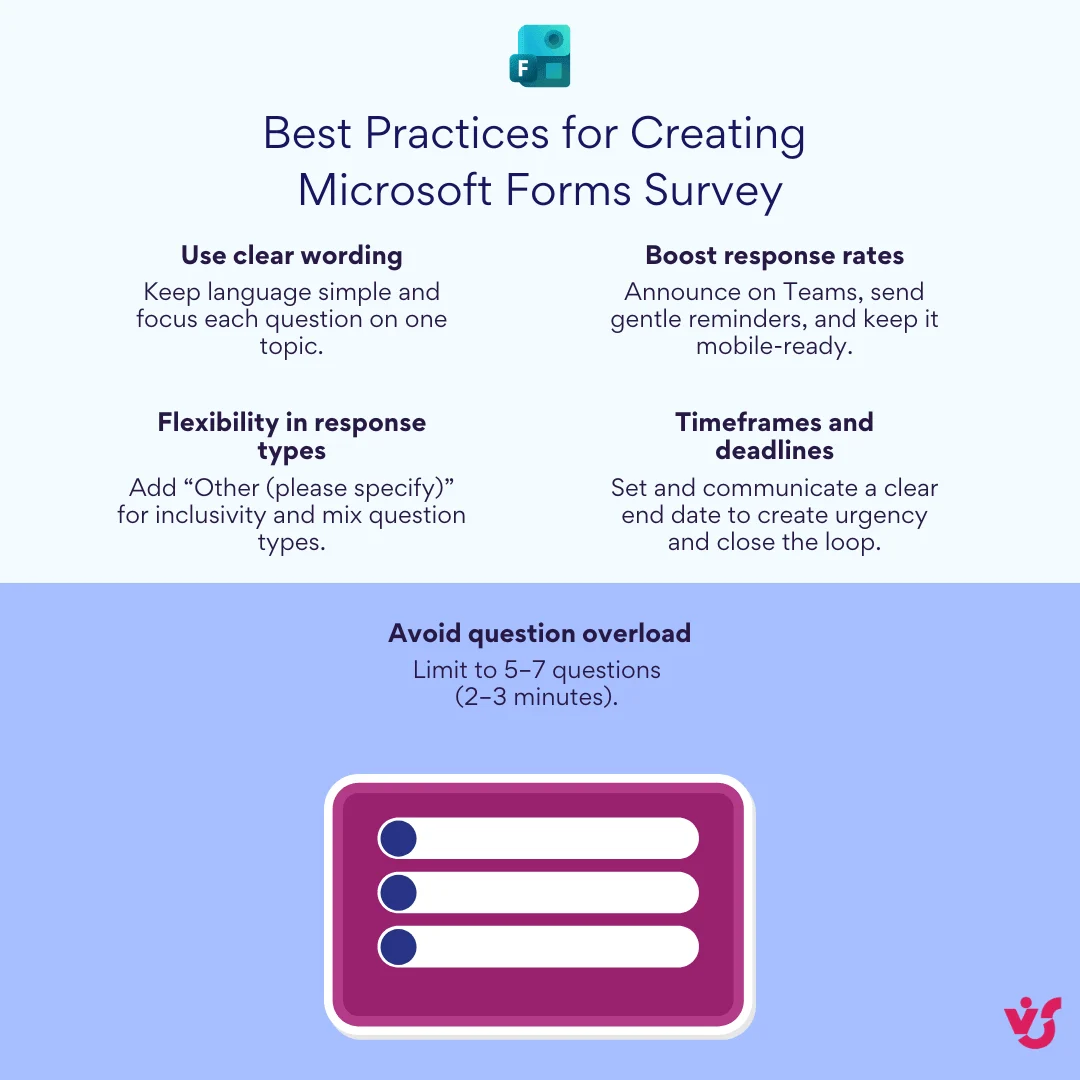
Use Clear Wording
Stick to clear, simple language—ditch jargon, ambiguity, or loaded phrasing that could confuse. Each question should laser-focus on one topic, like “How satisfied are you with remote work tools? (1-5)” instead of bundling tools, hours, and culture. Nail the title and description upfront: “Quick Team Pulse Check – Help shape our Q2 perks!” so folks know why it matters and hits their inbox with purpose.
Avoid Question Overload
Cap it at 5-7 questions for golden insights—aim for 2-3 minutes max, especially for voluntary polls. Long haul? Break into sections (via the “Add section” button) to ease scrolling and dropouts, keeping mobile users happy too.
Flexibility in Response Types
Always toss in an “Other (please specify)” for choice questions—catches edge cases your list missed. Mix in open text for rich comments, ideas, or stories (HR gold for “What one change would boost your day?”), while multiples/checkboxes handle nuanced picks like skill sets.
Timeframes and Deadlines
Set a firm end date in settings, and spell it out: “Responses due Friday—results shared in Monday’s all-hands.” It creates urgency and closes the loop, nudging stragglers without pressure.
Boost Response Rates
- Announce early via Teams shoutout or Outlook blast: “3-min survey launching today—your input shapes our roadmap!”
- Follow up with gentle reminders to non-responders after 48 hours.
- Keep it frictionless: Fewer mandatory fields, mobile-first design, and a “Thanks + preview results?” wrap-up screen for that feel-good transparency vibe.
These tweaks can double participation—test one survey, iterate, and watch your data quality soar.
Conclusion
Microsoft Forms stands out as a simple, convenient, and free survey tool from Microsoft, perfectly suited for both personal projects and corporate needs—whether you’re gauging employee sentiment or polling customers. Its seamless integration with Microsoft 365 staples like Teams and Outlook means you can embed surveys in chats, emails, or channels without missing a beat, streamlining your entire feedback workflow.
For everyday wins like regular feedback rounds, quick assessments, or engaging teams and clients, Microsoft Forms delivers reliable results with minimal fuss—ideal for most users in education, business, or events. Need more advanced polling power in Teams or SharePoint? Pair it with Virto Polls for richer features like unlimited surveys, complex logic, and real-time interaction that blows past Forms’ limits. Dive in today and turn insights into action!